
Core RPG handbook · Development build / version notes
Core RPG handbook
Saving and loading
Register your content, understand when the server saves, and check that a character keeps its progress after reconnecting.
On this page
Use a test character for this walkthrough. You’ll change a few inventory items, gain skill XP and move to another tile, then reconnect and restart the host to check that those changes return.
Connect settings and the definition registry#
- Open Tools → Green Cloak Games → TileTick Core RPG → Save System.
- If your project has no settings yet, use Create Settings + Definition Registry. The settings must be loadable from Resources as
SaveSystemSettings. - Check Definition Registry and its configured content folders. Use Preview Synchronization to inspect IDs and conflicts before applying changes.
- Use Review & Apply Synchronization only after reviewing the additions and removals. A manually configured registry won’t automatically include every new folder.
Saved item references use stable IDs. Changing Display Name won’t fix an unknown or duplicate ID, and changing an ID can disconnect existing saves from the definition.
Choose a save policy#
Review Save Folder Name, Keep Backups, Current Save Version and Autosave Enabled. Autosave is disabled by default; individual event options don’t override that master setting. The interval defaults to 300 seconds and is clamped to at least five seconds.
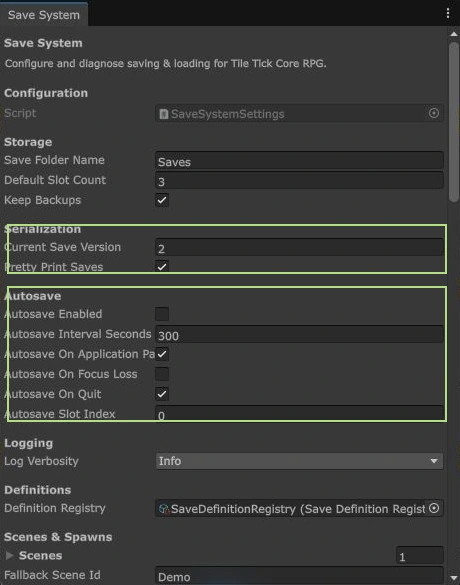
The local save format currently uses version 3 and supports migration from version 1 onward. Existing assets may contain older serialized settings. Don’t edit a version number simply to bypass a load warning.
Check a reconnect and restart#
- Run a host and a separate client with test accounts. Note the character’s item counts, skill XP and current tile.
- Gather an item, gain some XP and move. Disconnect through the supported session controls so server save writes can finish.
- Reconnect with the same account and character. Check the item counts, XP and position.
- Stop the host normally, restart it, and reconnect once more. Check the same state.
The authenticated CharacterId selects the save context. A placeholder “player” ID on a prefab must be replaced through the server’s character assignment flow. A new account or character will correctly start with different state.
Where the data lives#
Open Save Folder reveals local save data beneath Application.persistentDataPath and the configured folder name. The server’s storage needs to survive restarts. Local-file persistence doesn’t provide cloud storage or cross-server locking.
When the server owns character persistence, legacy client Quick Save is blocked. Use the authoritative session save/disconnect flow rather than bypassing SaveAuthority. Custom save modules must capture their data before the player is unregistered or despawned.
When data doesn’t come back#
| Problem | Check |
|---|---|
| An item disappears after loading. | Look for its stable ID in SaveDefinitionRegistry and check duplicate IDs or excluded custom folders. |
| The character loads as new. | Check the authenticated CharacterId and the server’s persistent storage path. |
| Autosave never happens. | Enable the intended master Autosave Enabled policy and review the interval and event options. |
| A save warning appears. | Keep the original file and backup. Read the first error rather than erasing the data to silence it. |
| A custom system loses progress. | Register a save module and capture before despawn; a later save call cannot read a destroyed player. |
Save-integrity and backup-recovery changes are still Unreleased; see the version notes. Integrity checks detect damaged data but aren’t an authentication system. For custom persistence, continue with save modules and lifecycle.