
Core RPG handbook · Development build / version notes
Core RPG handbook
Create your first item
Make a Practice Token, give it an icon and stable ID, then add it to a working inventory.
On this page
A basic item is a good first piece of content because there’s very little to wire up. It can be carried, stacked, traded and dropped. Once you’ve seen it in the inventory, you can use the same process for ingredients, quest items and shop stock.
Create the definition#
Open the supplied demo first and check that movement and the inventory already work. Create a folder such as Assets/MyGame/Items for your own definitions.
- Open Tools → Green Cloak Games → TileTick Core RPG → Item Database.
- Click Create Item and choose Template: Basic Item.
- Set Item Name to Practice Token and Item Id to
mygame.practice-token. - Assign an Icon, choose your new Folder, and enable Stackable if you want multiple tokens in one slot.
- Click Create Item, then select the definition in the database.
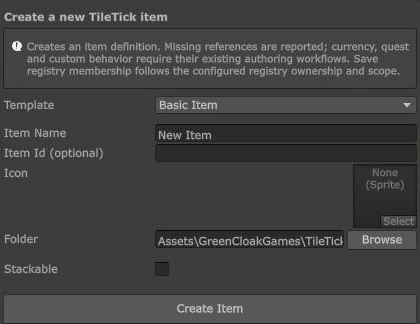
The wizard can generate an ID if you leave it blank. Entering one yourself makes the item easier to recognise while learning. Once saved characters refer to an item, keep its ID stable; change Display Name when you only want a different name in the UI.
Review the item in the database#
Check Item Id, Display Name, Icon, Is Stackable and Value. The icon is the inventory picture. World Drop Prefab Override controls a dropped-world appearance; it is separate from that icon and from any equipped visual.
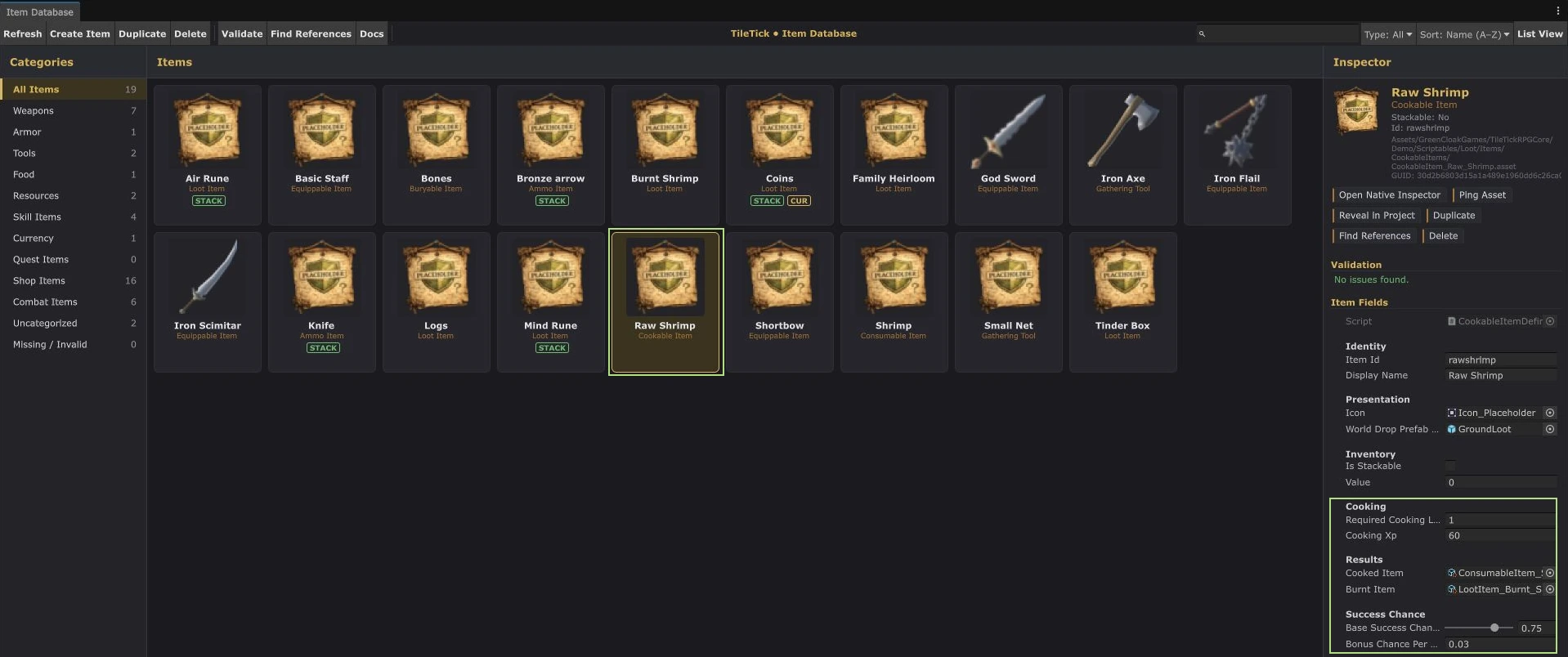
Click Validate and resolve duplicate IDs or missing fields. Find References helps when you want to see which shop, reward or other asset uses the item.
Get it into the game#
Use a path that already works in your demo. A simple option is to add the token to an existing shop’s stock, give it a small buy price, and purchase one with the demo character. The shop guide explains those stock fields.
For an isolated local scene, SimpleInventory exposes debug Slots with Item and Quantity. In a hosted demo, starter inventory and loaded saves can replace those values. Make changes to the actual player’s starter-content path rather than to an inventory UI object.
In Play Mode, check the displayed name and icon. Obtain a second token to check stacking, then drop and pick up one if your demo has that interaction configured. A Basic Item won’t gain an Eat, Equip or other gameplay action just because you gave it a name; choose a Consumable, Equippable or Gathering Tool definition for those behaviours.
Make sure it survives a save#
If you created a new content folder, open Tools → Green Cloak Games → TileTick Core RPG → Save System. Check the registry folders, use Preview Synchronization, review the changes, then Review & Apply Synchronization. An item outside the registry’s configured scope may appear during play but fail to resolve after loading.
Common snags#
| Problem | Check |
|---|---|
| The item has no picture. | Assign its Icon; a world-drop prefab does not supply the inventory icon. |
| Two different items behave as the same item after loading. | Check for copied or duplicate Item Id values. |
| The item cannot be granted. | Leave inventory space and check stacking/quantity against the item definition. |
| The item cannot be eaten or equipped. | Basic Item is a carryable item. Use the matching definition type for the behaviour you want. |
Next, turn this into a useful item: create a raw ingredient and cooked food, or make an equippable weapon.