
Core RPG handbook · Development build / version notes
Core RPG handbook
Configure equipment, spells and spellbooks
Make a weapon the player can equip, then add a combat spell to the player’s spellbook.
On this page
Begin with a supplied weapon or spell that already has compatible visuals. Give your copied definition a new stable ID, change one behaviour, and try it in the demo before adding a new model, projectile and UI at the same time.
Create an equippable weapon#
- Open Tools → Green Cloak Games → TileTick Core RPG → Item Database → Create Item. Choose Weapon, enter the item identity, name, icon and folder, then create it.
- Inspect its
EquippableItemDefinition. Choose Slot Type, decide whether it is Two Handed, and set Level Requirements. - Keep Is Weapon enabled and review Attack Style, Attack Range Tiles, Min Attack Range Tiles, Allow Diagonal Melee and Attack Speed Ticks.
- Set the combat bonuses and Base Weapon Damage for your example. For a ranged weapon, also check Required Ammo Category.
- Assign a compatible Visual Definition, Weapon Animation Class and Combat Style Set. Use the supplied rig and attachment setup for the first check.
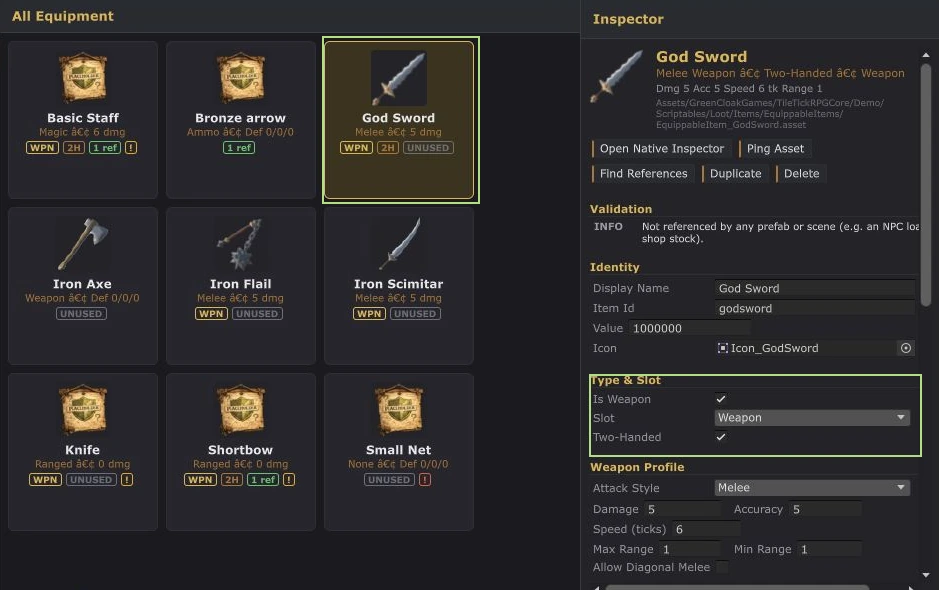
Inventory icon, dropped-world prefab and equipped visual are separate references. An item can equip and affect stats while still showing no model if its visual definition or rig attachment is missing.
Give the weapon through a working shop or starter inventory. Equip it, check the equipment slot and appearance, then attack a test enemy. Try the level requirement and two-handed/off-hand behaviour. Leave space before unequipping so the returned item can fit.
Create a combat spell#
Duplicate a supplied combat spell, or use Create → TileTick → Combat → Spell Definition. Enter an explicit Unique Id, Display Name, Icon and Examine Text.
For a damaging spell, use Cast Type: TargetEnemy and review Magic Level Requirement, Rune Costs, Cast Range Tiles, Cast Speed Ticks, Deals Damage and Base Max Hit. A new definition has Base Max Hit 0, so enabling damage alone won’t make it hit for a useful amount. Keep a compatible Projectile and set Base Experience for the spell.
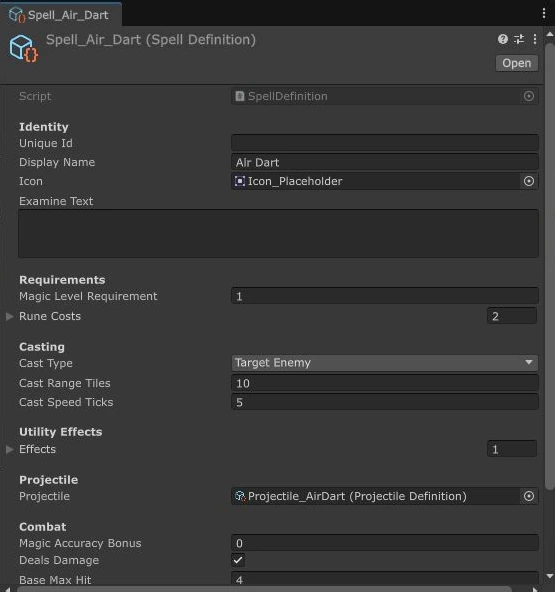
The Effects list is for utility casts such as On Item and Instant. TargetEnemy combat spells use the combat fields; they don’t need a dummy utility effect to deal damage. Magic Database provides Add Effect and New Effect when you are making a utility spell.
Put the spell in a book#
- Create a Spellbook Definition. Set an explicit stable Save Id, its Display Name, and add the spell to Spells.
- On the player’s
UnitSpellcaster, assign that book to Spellbook. - Check that
MagicPanelUIis bound to the same player’s Spellcaster. - Add the new spell and book to SpellDatabase → Spells / Spellbooks for network lookup. This is the asset loaded from
Resources/SpellDatabase, not a scene component. - Use Magic Database to review and validate IDs, books and rune costs.
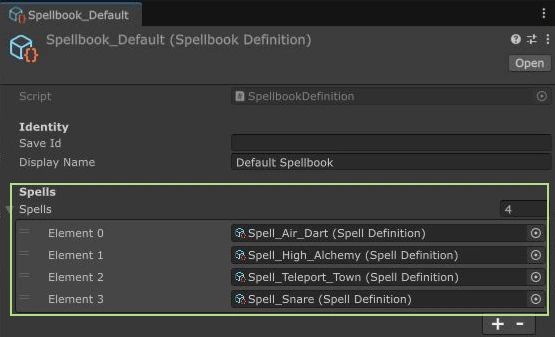
Cast it in the demo#
Give the player the required Magic level and the exact rune definitions listed by the spell. Select it in the magic UI and target a valid enemy within range. Check the rune cost, result and timing, then try insufficient runes and an out-of-range target. Autocastable applies to TargetEnemy combat spells.
If the spell is missing from the UI, check the assigned book and UI binding. If it appears but fails on a client, check server-side database registration and IDs. If it casts without damage, inspect Cast Type, Deals Damage and Base Max Hit before changing the projectile.
For custom damage or utility behaviour, continue with the combat pipeline and content extensions.